

Three things you'll need.
Have these ready before you begin so the setup runs end-to-end without interruption.
1. Your K2 credentials
We will email you a sign-in account in the form
firstname.lastname@k2da.com with a temporary password.
You'll be prompted to change the password the first time you sign in.
2. Your computer
Windows 11 (Windows 10 also works) or a Mac running macOS 12 or later. You need a stable internet connection — wired or strong Wi-Fi recommended.
3. Your phone
iPhone or Android. We use Microsoft Authenticator (free, from Apple App Store or Google Play) for the second factor. A phone with a working camera is required for the QR-code step.
What you do not need
You don't need to install Microsoft Office, VLC, IrfanView, or Notepad++ on your own computer — those are pre-installed inside the virtual desktop and licensed for the duration of the matter.
Everything stays inside the virtual desktop
Case files in E:\Data never leave the secure environment.
Copy/paste, screen capture, and file transfer to and from your local computer are
disabled by policy. Treat the virtual desktop as you would a secure review room.
Install Microsoft Windows App.
Microsoft renamed the Azure Virtual Desktop client to Windows App in 2024. It is the same app for both Windows 11 and Mac — just a different download. If you are unable to install software, the browser version works on any device with no install required.
-
Open the Microsoft Store
Click the Start button, type
Microsoft Store, and press Enter. You can also click the shopping-bag icon pinned to your taskbar. -
Search for “Windows App”
In the Store's search bar at the top, type
Windows Appand select the result published by Microsoft Corporation. Make sure the publisher is Microsoft — do not install look-alikes. -
Click Get or Install
The install is small and finishes in under a minute. When it's done, click Open.
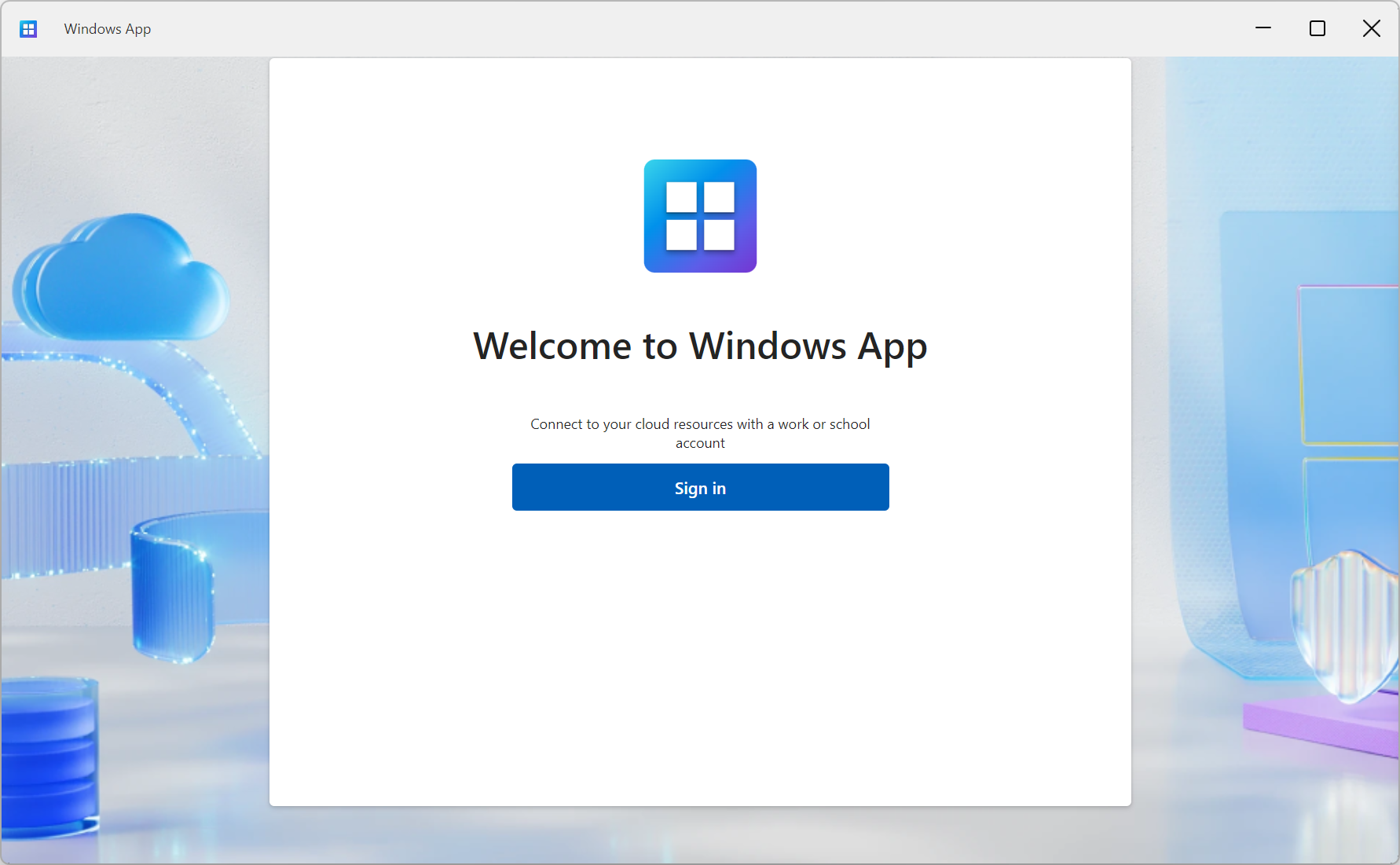
The Windows App welcome screen on Windows 11. Source: Microsoft Learn. -
Sign in with your K2 account
When Windows App opens, click Sign in. Enter your K2 username (
firstname.lastname@k2da.com) and the temporary password we emailed you. You'll be prompted to set a new password.First-time only. Windows may also ask you to "Allow my organization to manage my device." Uncheck that box and click No, sign in to this app only. That keeps the K2 sign-in scoped to Windows App and does not enroll your personal computer. -
Complete the first-run tour (or skip)
Windows App shows a short three-screen tour. Click through it or hit Skip. You'll land on the Devices tab.

The Windows App first-run tour. Source: Microsoft Learn. -
Confirm the K2-7804 desktop appears
On the Devices tab you should see a tile labeled K2-7804 · Review Workspace. If you see it, you're ready to set up MFA below. If you don't, click the Refresh button at the top right or sign out and back in.

The Devices tab in Windows App lists the virtual desktops assigned to you. Source: Microsoft Learn.
-
Open the App Store on your Mac
Click the Apple menu at the top-left of the screen and choose App Store, or click the App Store icon in the Dock.
-
Search for “Windows App”
In the search bar in the top-left corner of the App Store, type
Windows Appand press Return. Select the app published by Microsoft Corporation.Heads up: Older guides may mention Microsoft Remote Desktop. That app was retired in May 2025. Use Windows App — it's the replacement. -
Click Get · then Install
You may be asked for your Apple ID password or Touch ID. The download is about 90 MB and finishes in under a minute. When it's done, click Open — or find Windows App in your Applications folder.
-
Sign in with your K2 account
When the app opens, walk through (or skip) the welcome tour, then click the + button at the top-right and choose Sign in with a work or school account. Enter
firstname.lastname@k2da.comand the temporary password we emailed you. You'll be prompted to set a new password.
The Windows App welcome tour on macOS. Source: Microsoft Learn. -
Confirm the K2-7804 desktop appears
After sign-in, the Devices tab fills in with a tile for K2-7804 · Review Workspace. If it doesn't appear, click the circular refresh icon at the top-right of the window. Now move on to MFA setup.

The Devices tab in Windows App on Mac lists desktops you can connect to. Source: Microsoft Learn.
-
Open the Windows App for the web
In Microsoft Edge, Google Chrome, or Safari, go to:
https://windows.cloud.microsoft
No install needed — the browser client runs entirely in the page. Use it if you can't install software, you're on a borrowed computer, or your IT team has restricted Microsoft Store access. -
Sign in with your K2 account
Click Sign in and enter
firstname.lastname@k2da.com. Enter the temporary password from your welcome email. You'll be prompted to set a new password. -
Open the K2-7804 desktop
You'll land on the Devices view. Double-click the tile labeled K2-7804 · Review Workspace to start the session in a new browser tab.
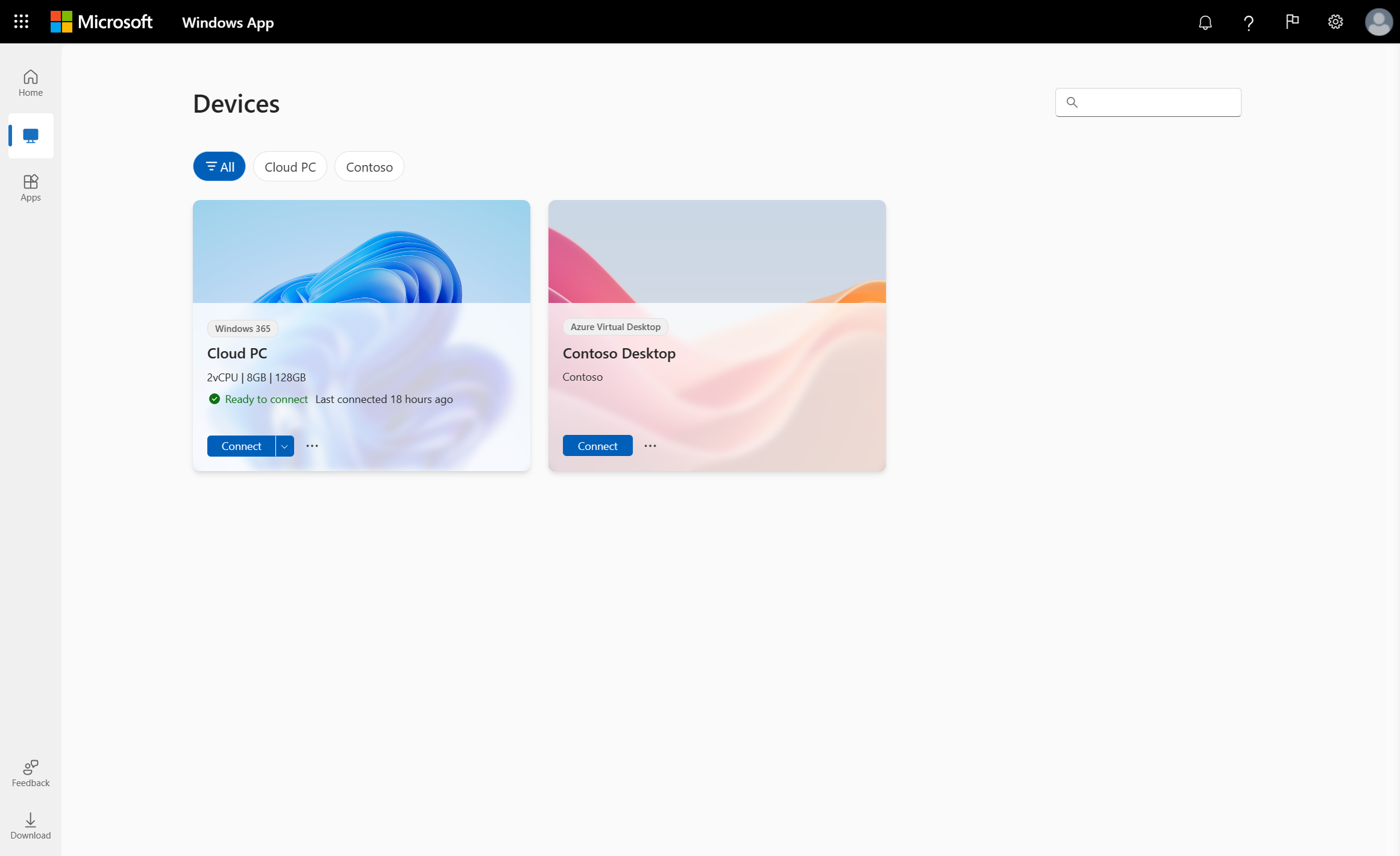
The Windows App browser client. Source: Microsoft Learn. -
Allow clipboard and printer access
Before launch, the browser asks which local resources to share with the session. For most reviewers, leave the defaults selected and click Connect.
Important: Even if the browser allows clipboard access locally, copying case material out of the virtual desktop is blocked by K2 policy.
Add the second factor.
On your first sign-in, Microsoft asks you to set up a second factor. We use Microsoft Authenticator on your phone — it produces the rolling six-digit codes and approves push notifications. Allow about 3 minutes.
-
Install Microsoft Authenticator on your phone
On your iPhone or Android, open the App Store / Google Play and search for Microsoft Authenticator. Verify the publisher is Microsoft Corporation and tap Install. The app is free.
-
On your computer: start the “More information required” prompt
After your first password sign-in, your computer shows a screen titled More information required. Click Next. The next page tells you to start by getting the app — you already have it — click Next again.
If your screen says Set up your account, that's the same step under a different label. Click Next. -
On your phone: open Authenticator and add a Work account
Open Microsoft Authenticator. If it's your first time using it, tap Accept on the privacy notice. Then:
Tap + (top-right) → Work or school account → Scan QR code. The first time you do this, your phone asks for camera permission. Tap Allow or OK.
-
Scan the QR code on your computer
Hold your phone up to your computer screen so the camera frame fits the QR code shown there. Authenticator captures it automatically and adds an entry called K2 Discovery Advisors to your account list. On your computer, click Next.
!Can't scan?
On your computer, click Can't scan image?. It will display a code and a URL. In Authenticator, tap + → Work or school account → Sign in — then enter the code manually.
-
Approve the test notification
Microsoft sends a test push to your phone. On your phone, tap Approve. On your computer, you'll see Notification approved. Click Next, then Done.
From now on, every time you sign in, you'll either approve a push or be asked to type the rolling 6-digit code Authenticator shows. Keep your phone with you.
Open K2-7804 · Review Workspace.
With Windows App installed and MFA in place, connecting takes one double-click.
-
Open Windows App and double-click the K2-7804 tile
On the Devices tab, double-click K2-7804 · Review Workspace. A connection window opens.
-
Re-enter your password and approve MFA
Each session asks you to confirm it's you. Enter your password, approve the push notification on your phone (or type the 6-digit code from Authenticator). The session window will go through a brief Connecting… state.
-
Wait for the desktop to appear
The first connection of the day takes 30–60 seconds while the virtual machine warms up. Subsequent connections are usually under 10 seconds. You'll see a Windows 11 desktop fill the window or, optionally, your full screen.
Tip. To switch between full-screen and windowed mode at any time, pressCtrl + Alt + Homeon Windows or⌘ + Ctrl + Fon Mac to reach the in-session toolbar. -
You're in.
Congratulations — you're now signed in to the K2-7804 review workspace. The next section explains what you'll find there.
What you'll see on the desktop.
The virtual desktop is a Windows 11 environment configured specifically for matter K2-7804.
Everything you need is on the desktop — including the K2-7804 Case Files
shortcut, which opens E:\Data.
Case files
On the desktop you'll see a shortcut labeled K2-7804 Case Files. Double-click it to open
E:\Data, where the working set lives. Sub-folders are organized by custodian and
production batch. Do not rename, move, or delete files; the folder is read-only
for most reviewers.
Pre-installed applications
The following are already installed and ready to use. You'll find shortcuts on the desktop and in the Start menu.
Microsoft Office
Word, Excel, PowerPoint, and Outlook. Activates automatically against your K2 sign-in — no key entry required.
VLC Media Player
Plays virtually any audio or video format produced in discovery, including legacy codecs.
IrfanView
Fast image viewer for stills, scans, and image productions. Includes batch operations.
Notepad++
Code- and log-aware text editor for reviewing CSV, XML, JSON, EML, and load files.
How printing, downloads, and copy/paste work
By matter policy, copy/paste between the virtual desktop and your local computer is disabled, as is local printing and file transfer. If you need an excerpt for the record, contact the K2 case team and we'll handle it through the established protocol.
Sign out at the end of the day
When you're done reviewing, click the Start menu inside the virtual desktop → your user icon → Sign out. Closing the Windows App window alone leaves the session running and counts against billing — please sign out properly.
Common hiccups, fixed.
The K2-7804 tile doesn't appear in Windows App
Click the refresh icon at the top right of the Devices tab. Still nothing? Sign out (top-right user menu → Sign out), close Windows App completely, and sign in again. If the tile is still missing, your account may not be provisioned yet — email K27804@k2da.com with your K2 username.
I get “User account does not have access to the resource”
That message means you reached the workspace but aren't yet assigned to the matter. Email K27804@k2da.com — we can usually correct it within an hour during business hours.
Authenticator push notifications aren't arriving
Open Microsoft Authenticator on your phone, tap your K2 Discovery Advisors account, and tap One-time password code at the top. Type that 6-digit code into the sign-in screen on your computer instead of waiting for the push. While you're there, check that your phone has data or Wi-Fi and that notifications for Authenticator are enabled in your phone's Settings.
The desktop is laggy or pixelated
Connection quality depends on your local internet. Switch from Wi-Fi to a wired connection if you can, or move closer to your router. Closing local video calls (Zoom, Teams) frees bandwidth. If problems persist, sign out and reconnect — the session re-balances to a less-loaded host.
Office is asking me to activate
Office activates automatically against your @k2da.com sign-in. If you see an activation prompt,
click Sign in and enter your K2 username and password — do not enter a product key.
If activation still fails, contact support.
I forgot my password
On the sign-in screen, click Can't access your account? → Work or school account. You'll be sent a reset code to your email and asked to verify with Authenticator.
We're here to help.
Setup issues, access changes, and matter-specific questions all go to the K2-7804 case team.
K2-7804 Support
Email is the fastest way to reach the K2-7804 team. The inbox is monitored Monday–Friday during business hours.
What to include in your message
Your full name, the issue you're seeing, the platform you're on (Windows, Mac, or browser), and a screenshot if you have one. That lets us resolve most setup issues in a single reply.